Processes
The Processes tab is a live table of every process on the machine, refreshed on the interval you set. It opens sorted by CPU % (highest first).
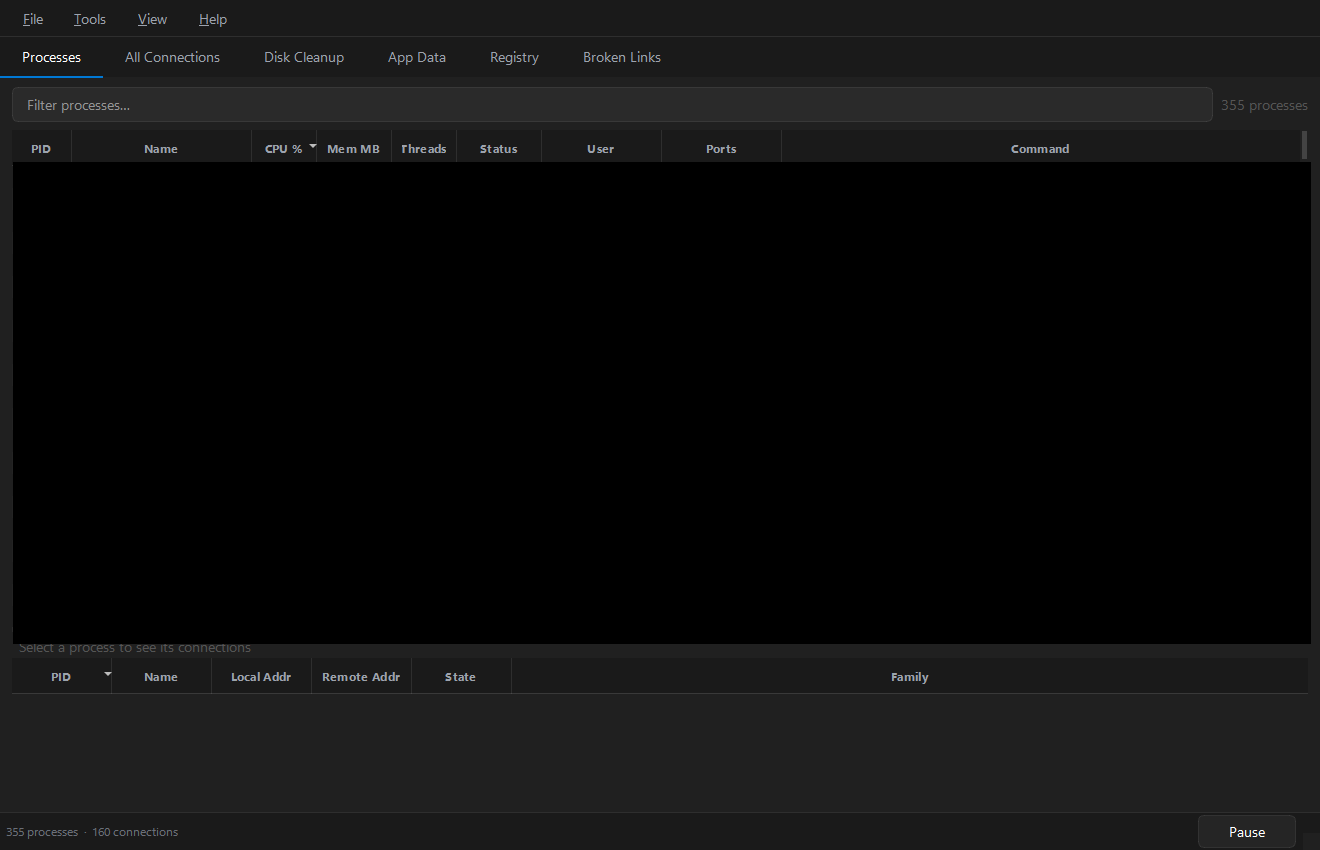
Columns
| Column | Meaning |
|---|---|
| PID | Process ID — unique identifier assigned by the OS |
| Name | Executable filename |
| CPU % | CPU usage since the last refresh (across all cores); highlighted when high |
| Mem MB | Physical RAM in use — Resident Set Size (RSS) |
| Threads | Number of active threads |
| Status | running · sleeping · stopped · zombie |
| User | Account that owns the process |
| Ports | Local ports with open network connections (highlighted) |
| Command | Full command line including all arguments |
Hover any header in the app for the same description.
Find what you need
- Filter — type in the box; it matches across every column (name, PID, user, command, port…), case-insensitively. The count label shows how many rows match.
- Sort — click a header. Numeric columns sort as numbers.
- Select — click one row, or Ctrl/Shift-click for many. The connection panel below tracks the last-clicked process.
Per-process connections
Selecting a process fills the connections panel at the bottom with that process's network connections (local/remote address, state, family). Drag the splitter to resize it. This is the same data as the All Connections tab, scoped to one PID.
Actions (right-click)
| Action | Applies to | Notes |
|---|---|---|
| Inspect… | one process | Opens a detail dialog with full metadata and connections |
| Open file location | one process | Selects the executable in Explorer |
| Kill | one or many | Confirms first, then terminates |
Killing processes
Kill works on a single process or a whole selection:
- A confirmation dialog lists exactly what will be killed.
- Rows for killed (and already-gone) processes are removed immediately for instant feedback — no waiting for the next refresh.
- The status bar summarizes the result: Killed N · M already gone · K access denied.
caution
If a kill fails with access denied, the process is system-owned or owned by another user. Re-launch the app as administrator and try again. Killing critical system processes can destabilize Windows — check what you are terminating.