App Data
The App Data tab lists per-application data folders across the AppData roots, sized and sorted, so you can see which applications are using the most space — and which folders may be left over from software you've uninstalled. Read-only.
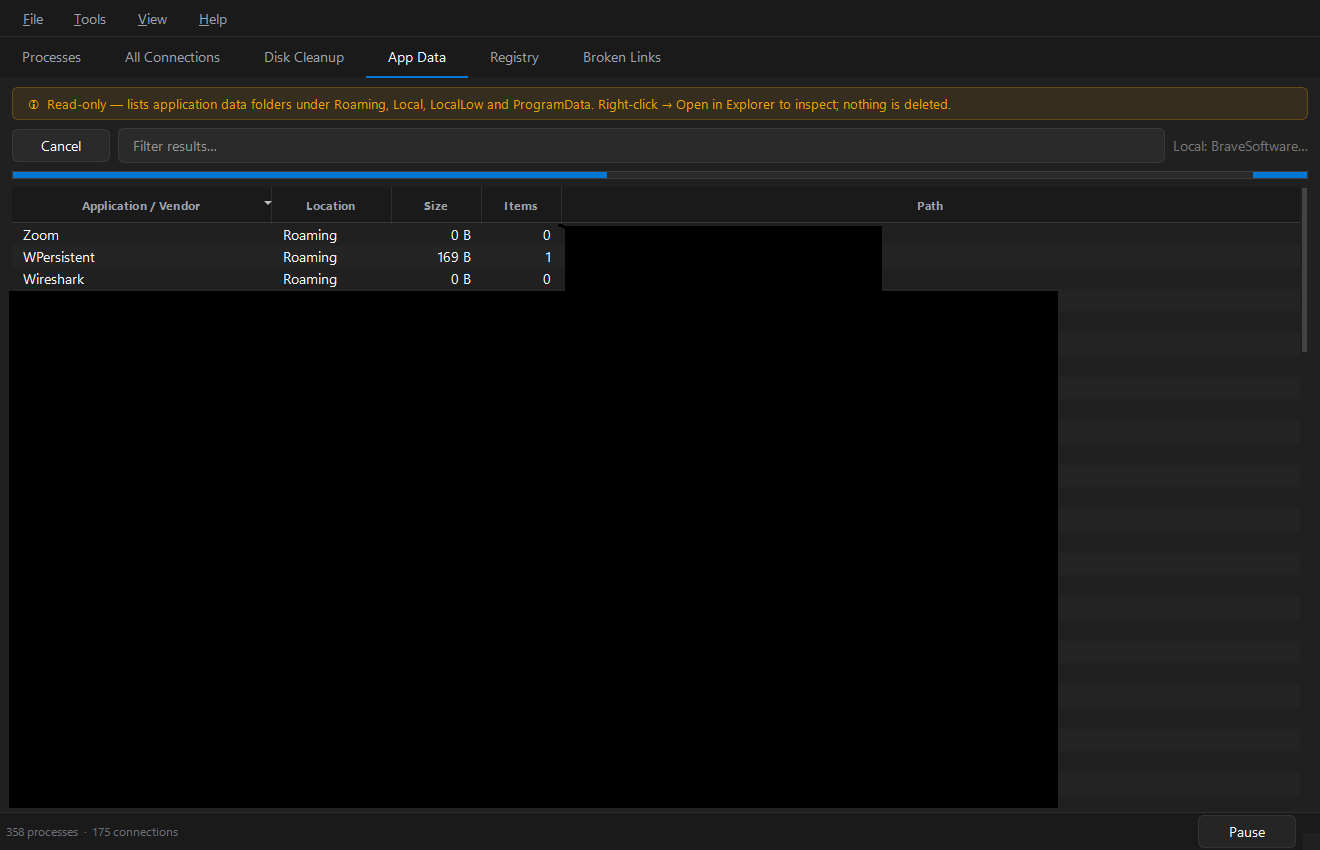
Press Scan app data (or Tools › Scan App Data). Results are sorted by size, largest first.
Roots scanned
| Location | Path |
|---|---|
| Roaming | %APPDATA% |
| Local | %LOCALAPPDATA% |
| LocalLow | %USERPROFILE%\AppData\LocalLow |
| ProgramData | %PROGRAMDATA% |
| Profile | dot-folders in your home directory (~/.gradle, ~/.vscode, …) |
Columns
| Column | Meaning |
|---|---|
| Application / Vendor | Top-level folder under an AppData root |
| Location | Which root it lives in |
| Status | Heuristic hint — see below |
| Size | Total size on disk |
| Items | Number of files |
| Last modified | Newest file in the folder (its age) |
| Path | Full path — Open in Explorer to inspect |
Status hints
These are conservative heuristics to review, not deletion targets:
- Orphaned? — the folder's name matches no installed program, cross-referenced against the Windows Uninstall registry keys. It might be left over from uninstalled software — or it might belong to a portable app or a program that registers under a different name. Verify before removing anything.
- Large & stale — over ~1 GB and untouched for roughly six months. A candidate for review if you're short on space.
The summary line reports how many folders look possibly orphaned.
Acting on the results
Right-click → Open in Explorer to inspect a folder, then decide for yourself. As everywhere in the app, nothing is deleted for you.
An Orphaned? flag is a hint, not a verdict. Some applications store data under a vendor name that doesn't match their installed-program name, so a live app's folder can be flagged. Always look inside before deleting.